Rainbow Pinwheel Pointer
Showing posts with label Computer Tricks. Show all posts

How to remove Shortcut virus using cmd and Recover your Files

 
How to remove Shortcut virus using cmd:
 
The Shortcut viruses are those which converts all your data from your pen drive or Hard disk to shortcuts, but they are recoverable. just follow the below given steps to remove shortcut virus from pen drive and recover back your files.
  • Go to Start -> Run -> cmd.
  • Go to your pen drive directory.
  • Type this command: del *.lnk and press Enter.
  • Type attrib -h -r -s /s /d e:\*.* And then press Enter.

Recover your files :

You can recover your files through WinRAR.
  1.  Open WINRAR Application.
  2. Navigate to your Pendrive location or PC Folder location.
  3. Copy Files and Paste where you want.
  4. Format your Pendrive. 

Got some Files in your pen drive but they are empty! Because of the virus in your pendrive malfunctions your drive. How to remove this empty folder virus and recover files? Follow the steps given below.
  • Start -> Run -> cmd.
  • Type this command: attrib -h -r -s /s /d x:\*.* 
  • Here the letter "x" should be replaced with the drive alphabet of your pendrive that you have inserted into the computer.
  • If your pendrive shows the drive alphabet as "J", then type  this command: attrib -h -r -s /s /d j:\*.* And then press Enter.
 

Finding & Removing Viruses Using Command Prompt


Follow the below guide only if you think any of your drive is affected with virus or if you think there are some harmful files and you want to delete them.

Step 1: Go to start menu and type “cmd” in the search box or Start>all programs>accessories>command prompt.

Step 2: Select the infected drive,to do so type in CMD , D: to go to D: drive.

Step 3: Now type dir/w/a . It will show all the files of the drive including hidden files.

Now Check if there is any file or virus that you are not aware of and you think might be Harmful to your PC.

Step 4: Usually there is Autorun.inf file which you must delete it. to do so Type in attrib -h -r -s autorun.inf  and press Enter. Type del autorun.inf  and press Enter. Follow this for all other drives.

Step 5: We have now successfully found and deleted autorun.inf file from D drive. if you find any .exe file which is unknown to you. then delete it using the same above method.

4 Ways To Use Mobile Internet On PC


 1) Use Internet From Android Using Tether


Tether is a specialized software that allows you to use internet of your Android phone to computer. 
First of all download and install Tether in your computer: DOWNLOAD TETHER

  • Before you run tether in your computer , connect your phone via USB and make sure that USB Debugging is enabled in your phone.
  • If not , you can enable USB Debugging by navigating to Setting > Applications > Development and mark USB Debugging
  • Now Install Tether in your computer. During installation it will ask several times for confirmation click Yes and Trust everytime. It will install Tether in your phone at the same time so make sure that your phone is connected to computer during installation
  • After installation choose your device i.e. Android and mode i.e. USB
 
 
Once it shows that you are connected to Android , you can run any browser and start using internet on your computer.


This window shows you confirmation and status of your internet connection . If you need to check your amount of data sent / received during active session you may refer to this window anytime.


2. Use Internet From Android Using USB

  • Connect your Android phone via USB to Computer 
  • Press Home / Applications button and go to Settings
  • Go to More and select Wireless & Networks section 
  • Now open Tethering & Portable Hotspot
  • Check USB Tethering to establish a USB data connection with your computer and Uncheck the  sever the connection option
You are now all set to use internet on your computer simply using USB cable.


 3. Use Internet From Android Using Bluetooth Hotspot

  • Connect your Android phone via USB to Computer 
  • Press Home / Applications button and go to Settings
  • Go to Bluetooth From Wireless and Network Section
  • Turn On Bluetooth and make it Discoverable
  • Now Come to your Computer , Click On Start Button go to Control Panel
  • Click on Hardware & Sound then on Devices And Printers
  • Finally click on Add a device and select your Android phone from list to pair it & click Next
  • Coming back to phone , go to Wireless and Network Section & Check Bluetooth tethering
In this way you can use your mobile net in computer using Bluetooth tethering

4. Use Internet From Android Using Portable Hotspot

  • Press Home / Applications button and go to Settings
  • Go to More and select Wireless & Networks section 
  • Now open Tethering & Portable Hotspot and check Portable Wifi Hotspot
  • Tap on Configure Wifi Hotspot & Enter any name as your SSID
  • Set security and password for your Wifi Hotspot & Save it.
Your phone is now generating Wifi Signals which can be used by your laptop.

HOW TO RECOVER ACCIDENTALLY DELETED MESSAGES ON MOBILE


Before we proceed,note that “This trick doesn't work for SymbianV3 phones”
Now,make sure you have a File manager installed on your phone [X-PLORE or FEXPLORER]

Recovering Of Deleted Messages On Symbian Phones.

  1. Open/Launch X-plore.
  2. Navigate to C: if your messages are stored on “phone memory” OR D: if on external device.
  3. Locate System » Mail and click on it.
  4. Now,you should see different files/folders named 001001_s,0010001_s,00100001_s etc.
  5. Finally,open these files using the Explorer's default Hex viewer by locating it in the options {options»File»Hex/Text viewer} or by simply clicking “3”.
That's it.

HOW TO USE SYMBIAN PHONES AS HOTSPOT TO BROWSE THE INTERNET ON COMPUTER


Connecting a computer to the internet is becoming lot more easier day-after-day with the development of new & great Softwares.
In this post,I'll be sharing with you yet another great software which works on Symbian S60 phones..
It's called “JOIKUSPOT”

JOIKUSPOT.

Joikuspot is a software-solution that simply helps to turn a Symbian Phone to a secure mobile WLAN(Wireless Local Area Network) Hotspot,i.e With Joikuspot,an S60 phone is converted to an open Wifi/Wlan Hotspot which can be used to connect a Computer to the internet to surf the web using a “Joikuspot generated mobile wifi access point”.

It was developed by JoikuSoft,with series of updates ever since its creation in 2008.
While installing the app.,you'll be prompted to select a language which is best understood by you.
Some of the featured languages include »
  • English (U.K & U.S.A)
  • French
  • German
  • Spanish
  • Italian
  • Swedish
  • Danish
  • Norwegian
  • Finnish
  • Portuguese
  • Turkish
  • Russian
  • Dutch
  • Slovenian
  • Chinese
  • Japanese
  • Arabic
  • Hebrew
  • Ukrainian
  • Indonesian
  • Korean [and much more]
Using Joikuspot for internet connection is extremely easy.
It doesn't require Bluetooth connections,neither does it require the usage of USB chords.
Just follow these simple steps →
  1. Download Joikuspot to your phone (Download Link Below)
  2. Install it on your device (Click “OK” to by-pass all pop-ups)
  3. Once installed,you'll be required to reboot your phone.
  4. Launch the application and select a valid Access point to turn your phone into a Wifi hotspot[3G Modem].
  5. Scan for “Open wifi networks” using your high-grade desktop/laptop.
  6. Once found,select “Connect” and you're ready to surf the net on your computer.
Note »
It's necessary for you to have data bundle on your sim-card for Joikuspot to work.
Some of the supported phones include
Nokia N8, E7, C7, C6, N900, E51, E52, E55, E60, E61 , E61i, E63, E65, E66, E71, E72, E73, E75, N78,N79, N80, N97, 808, 5800 and much more.
[DOWNLOAD JOIKUSPOT PREMIUM VERSION]
(Get the upgraded version from Nokia Ovi-Store)
That's all.

HOW TO LOCK & UNLOCK A COMPUTER USING MOBILE PHONE'S BLUETOOTH


Today,I'll be introducing to you yet another great PC software.
It's such a handy software which makes securing of Computer easier.
Each passing day,new applications are being created to make the usage of computer simpler and less complex.
Amongst them is Bluetooth Proximity(BtProx).
Bluetooth Proximity is an application designed for Windows Vista and Windows 7.
It detects a paired mobile device and locks/Unlock the Computer based on the number of seconds/minutes set.
With Btprox,you do not need to worry about leaving your Computer-system running whilst leaving the room as you're rest assured its locked out of intruders might.
One other thing which makes this software a must-have is its nice feature of unlocking when you enter into the room.
Though,this feature is not fully functioning in some Systems(as complained by users),it does work on most Windows 7_64 Bits(Tested).
Likewise,the founder of this app. has promised a fully functioning software in newer updates.
The whole idea behind this software is to help save the stress of racking the brain to remember the shortcut to lock the computer without passing through a whole lot of stress.

Requirements of BTPROX.

  • Bluetooth-enabled Mobile phone.
  • A computer with embedded bluetooth[Not sure if it works with an external bluetooth adapter].

How To Lock/Unlock Computer Using BtProx.

To begin with this tutorial,download the latest Bluetooth Proximity HERE
  1. Install the application on your Computer
  2. Run/Launch it.
  3. Minimize it and go to your Bluetooth Suite to pair your Mobile phone with the Computer[If done,then skip]
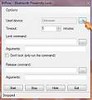
  4. Next to “Used device:”,click on “…” to select the paired Mobile device.

  5. Bluetooth proximity.jpg

  6. Once done,choose a default “Timeout” for your Computer to lock/unlock itself by directly inputing it or by clicking-on the Up-Down buttons.
  7. The minimum time is `0 min./60 sec.[No maximum]`
  8. Finally,click on “Start” to begin the lock command based on the number of minutes set for it to lock.

TIPS
  • Always set the timeout to 0 min. To save phone's battery life.
  • Try muting the Laptop so that intruders won't be notified of the lock due to the beeping sounds
  • When the specified mobile device is within range/the app. is running smoothly,the icon turns ORANGE.
    If it turns RED,then the device is out of range & the system is about to be locked automatically.
  • Whenever your switch-off your mobile phone's bluetooth,then the software sees it as “Out Of Range” and prepares to lock
  • To abort/end the application,simply click on the “STOP” button.
That's all.
With this,I believe the security of your Computer will be maximized.

HOW TO SPEED UP COMPUTER USING MOBILE PHONES AS RAM


Using ReadyBoost Application To Speed Up Computer.

Like I mentioned above,the whole idea behind using a Mobile device,Memory Card... as RAM[Random Access Memory] is made possible with ReadyBoost App. which is present in virtually all computers.

Here's How...

  1. Connect your Mobile Phone/Flash Memory card to the Computer using a USB chord or a Card reader.
  2. From the list of options that pops up on your Mobile phone,choose“MASS STORAGE”(For Blackberry users,choose USB Drive
  3. Note
    If you're using a Memory card,then you should skip the step above.
  4. Scroll to the bottom of the AutoPlay list that pops-up, and click on“Speed Up My System”.
  5. Now,the ReadyBoost window will be displayed. Just tick the option which says “Dedicate The Device To ReadyBoost”
  6. Next, check to ensure the "speed level" is at 4094MB, then Apply and finally click on OK
That's all!!! You can now feel the power of speed.
NOTE
If in any case the Ready Boost window does not display,then it means your PHONE/SD CARD'S available memory is not up to the needed amount.

You can try getting rid of useless files from your phone / SD card until you have something like 950MB& above free.
TIPS
  • It's advisable you get a dedicated SD card for this purpose,so as not to lose important files.
  • Always remember to back-up your files to your system if in any case you'll be deleting some files on your Mobile phone.
  • For Laptop owners, it's recommended you use a Card-reader, because you can't always go about with your Phone connected with a USB chord.