Rainbow Pinwheel Pointer
Showing posts with label Windows 8. Show all posts

Subway Surfers Updated and went to Beijing(China)


1.28.0
- Follow the Subway Surfers World Tour to mystical China
- Pace through the Subway of Beijing with acrobatic Sun
- Add powerful Board Upgrades to selected boards
- Reach for the challenging new Coin Cautious Awards
- Search the tracks for hidden dragons to unlock weekly prizes

Download Here

or

Download Here


Better File Copying Speed in windows


Windows have made some efforts in windows 8 to improve Copying Speed. Copying FILES is better in windows 8 as compared to older versions but yet its slow and many times it Conflicts, so we will be Using TeraCopy (google it and download full version) to take up this task and its Fast and Effective. What it does is, it  Eliminates windows Default File-Copy Dialog  and gives us a better one.

After Installing TeraCopy, Whenever you Will Copy and paste, TeraCopy will Come into Action and do the Task for you much Faster. it also adds itself to Context Menu as an Option if in Case you prefer to Use it only when you Want to.

How to Use Keyboard as Mouse in Windows


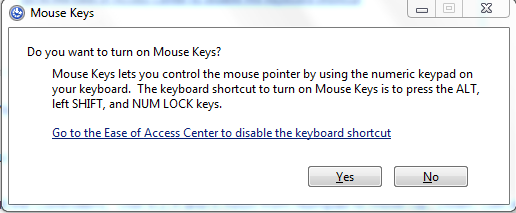
 Windows OS has an Inbuilt option Called MouseKeys, Not much people are aware of it but yes now you are.  You can Enable/disable and disable MouseKeys very Easily.
  • You can Enable it by Pressing  Alt + Shift + Numlock keys. As soon as you do it, you will be prompt with the below dialog box, Just Click Yes to it

  •  .Make Sure your Numlock is Off while you Use keyboard as mouse.
  • Done !!! Now you will see MouseKeys icon on your taskbar, which means now you are all set.
  • Now talking about the Controllers,  Use 8,2,4 and 6 Keys from Numpad to move Up, Down, Left and Right Respectively.
Probably we will have to Use Keyboard as Mouse temporarily and not for long time.

Facebook app for Windows 8 Download


It has been a few days that Microsoft has launched the update for Windows 8 i.e. Windows 8. All the users who are currently using Windows 8 will be able to upgrade to windows 8 for free of cost. There have been a number of changes which were seen in Windows 8 with one being Addition of the popular Start button.
The interface of the Facebook app for Windows 8 is quite similar to the other apps developed by Microsoft for Windows 8 as you get a sidebar at the left hand side which will come with tabs which will show you the notifications, news feeds, check ins etc. On the right hand side of your computer screen you will see all your online friends just like the way you see in Facebook if you are using a web browser to access it. In the center you will see all the status updates which are made by your friends, photos and videos shared by your friends and all the notifications made by the pages and groups which you have liked.
Using this app all the notifications which you receive and tagged status updates will be displayed on the Windows Start screen. Just like you used to have group conversations while you were using Facebook in a web browser you can have that here too. Share pictures, videos and update your status easily with the help of this Facebook app for Windows 8.
This app is developed by Facebook and not by Microsoft. If you want to use Facebook on your Windows powered mobile phones you can download the Facebook for windows mobile phones from the Windows store. Facebook has also started a beta testing program in which users can test the upcoming versions of Facebook app before the official launch and tell if there are any bugs present in the software.
To download Facebook for Windows 8 visit the Windows Store and follow the instructions you get on your computer screen.

Get Back the Start button Using softwares in windows 8


You can also have few more software or options by which start button or start menu can be installed with more features to be enjoyed, and without any defects/problems that you can face after the installation.
1. Classic Shell : This is an outstanding free software that you can have to add up a start menu button to the taskbar, and not only this but you are lucky enough to get a few more features that come with it.
2. ViStart 8 : This is another outstanding software which I personally recommend as I have personally tried it out in my Windows 8 PC and got a positive result from this with an amazing Start button on my taskbar which made it easy for me, and along with this I also got additional features which are cool like the ability to change the skin and much more.
3. Pokki : Up to now we have seen Couple software to Get Back the Start button in Windows 8 and trust me the best by far is Pokki.

Have a Windows Start Menu Toolbar for windows 8


Yes , you can have or create a start Menu on the toolbar, and this can be done by following below mentioned easy steps.
  • Firstly enable the Show hidden files option.
  • Now Create a New Folder, Now Copy and paste all Files, Docs, Setups or Programs that you Use Daily and Wish to have it within seconds in this new Folder.
  • Now  a right click on the Taskbar , Hover your mouse on Toolbar then select a new Toolbar from the Toolbar option.
And finally browse to the New Folder you Created and click select folder. With these above mentioned steps you will see a new start menu folder on the Right Hand Side of the task bar. this is not your start button like we had in windows 7 and xp but this is very close to it

How to Increase Laptop’s Battery Life


1. Reduce the Screen’s Brightness

Screen is a major culprit, in the sense that it uses the most battery of your machine. Make the brightness as least as possible when you are on the go.
In Windows you can have different brightness set for when the adapter is connected and when it’s not. You should set a more brighter screen when your laptop is plugged and a very less brighter screen when it’s not.

change power plans Windows

To do this you can goto the Control Panel > Power Options and select “change plan settings” against the currently active plan (marked by the black dot). Now you can change the brightness for both the scenarios we just talked about.

adjust brightness Windows

2. Changing Power Plan

Windows by default has three power plans, namely, “Balanced”, “Power saver” and “High Performance”. By default, the settings for the power saver plan are ideal for using your laptop without being plugged in, but if you want to tweak it more then you can go to Control Panel > Power Options and select “change plan settings” against the “Power Saver” plan and now you can change the settings for this plan. You can also change the advanced settings to get some more life out of your battery before it dies.

change advanced power settings Windows

3. Switching OFF WiFi and Bluetooth Adapters When Not in Use

Nowadays our laptops are connected to the WiFi all the time. So we keep our laptop’s WiFi and Bluetooth adapters on. But they consume huge power and eat up our battery hugely. When you are not using your WiFi or Bluetooth then turn them off. This will save you quite a lot of battery and get you some extra minutes.
These adapters can be easily turned ON and OFF by pressing the function key and the key from (F1-F12) that is responsible for toggling wireless networks, usually with a WiFi symbol on it. Some laptops even have a dedicated switch for toggling the WiFi adapter.

4. Defragmenting

This may seem to be odd in this list but yes, defragmenting your hard drive slows battery consumption. This is due to the fact that defragmentation arranges data in a better way and a defragged hard drive moves data faster and can have speedier access to it.

5. Don’t Sleep, Hibernate Instead

Most people tend to Sleep their laptops instead of Shutting them down. This saves them from starting their laptop and all the programs again. But sleep consumes some amount of battery to supply power to the RAM. This power is required to keep the present system state in the memory. But hibernating the laptop will flush the present system state to hard disk and RAM no longer requires the power to stay awake. This, on the other hand takes almost negligible power.
When you know you are not going to use your machine for quite a few hours then always go for hibernation. It will take some time to load everything up, but it saves battery and increases battery life.

6. Give Up Optical Disk Drive

If you are using optical disk drive for any reason either playing a game or for consuming some multimedia content, then go local. Copy the content to your hard drive, and if the game requires the disc to be present in the drive all the time, then use some free application like DAEMON Tools Lite to mount the disk image
[TIP] Don’t ever leave any disk in your CD/DVD drive if you are not using it. Battery is consumed whenever the disk revolves.

7. Pause or Stop the Scheduled Tasks

I mostly schedule my virus scanner and defragmentation after midnight. If you have some scheduled tasks stacked up and your laptop is on batteries then pause all those tasks. The PC tuneup applications are the greatest battery drainers and should run only when your laptop is plugged.

8. Update Windows and Other Applications

Developers issue updates to make their apps more stable, reliable and faster. We should always keep our apps and the Windows up to date because you never knows when an app gets optimized for using lesser resource and hence lowers the battery consumption.

9. Always Use the Original or Atleast the Right Adapter

You should always use an original adapter with your laptop. It should always have the correct wattage, if not, it can harm both the battery and the laptop.

10. Avoid High Temperatures

Don’t use excessively or leave your laptop under direct sunlight and always make sure the laptop is not generating too much heat. If it is, then see if the fan is functioning properly, or if you have covered the vent some-how.
If everything looks fine and it’s still heating, then take it to the service centre or grab a cooling pad.

11. Mute the speakers

Your internal speakers consume power. Don’t use them much while unplugged. Also don’t run heavy multimedia programs for editing or playing audio or video. They are the biggest power-hungry apps.

12. Stop Unused and High Resource Consuming Apps

There can be many processes running in the background that you are not using and maybe not even aware of. Try to end most programs from the system tray that remain unused. Also press the CTRL+SHIFT=ESC key combination which opens the “Windows Task Manager” and end the programs that you no longer need.

stop unused applications and increase battery life

13. Disable startup programs

You must limit the applications that run at start-up. This will also help chop your boot-up time and your system will boot-up faster. Here’s a tutorial that will teach you how to limit the startup apps using MSCONFIG.
You can also disable indexing and Windows Defender for a faster start-up.

14. Disable Unneeded Adapters and Devices

Like Wi-Fi and Bluetooth adapters, you can also disable other unused ports and adapters, some of which are the LAN port, the disc drive and some other devices that you don’t use. This can be done by going to “Control Panel > Administrative Tools > Computer Management”, click on “Device Manager” for the left navigation and device all the ports and adapters you don’t use.
This will have a little effect on battery consumption, but can be of big help in long run.

disable unneeded adapters and devices

15. Uninstall Programs That You Don’t Use

A new laptop comes pre-installed with many applications either developed by the laptop manufacturer itself or by the third-party developer companies. Most of these software remain unused all their life. So, you must remove them because most of these startup at Windows boot and stay in the RAM all the time, therefore causing greater RAM usage, increasing battery consumption and decreasing speed.
To uninstall applications go to “Control Panel > Programs and Features” and uninstall the apps you don’t use.

16. Keep your RAM empty

If your RAM is completely full, then the processor will move the data to the page file stored in the hard drive. This will increase hard drive usage which consumes a lot of battery.
So, either use a program like Cleanmem, that clears your RAM after every set interval or add up some more RAM. You should also stop unused programs to free up more RAM.

17. Don’t Use Heavy Applications While On Batteries

Many Video, Audio and Image editors today consume a lot of resources and hence the battery. You should stop using programs that impose high load on your machine when running on batteries. Avoid using audio and video converters too.

18. Setup Your Laptop to Auto Turn OFF the Screen Automatically

Windows can automatically turn-off your laptop’s screen when you keep it unused for a set time duration. The duration can be set by you for both, when your laptop is connected to external supply and when it’s not. This can again be done by going to “Control Panel > Power Options” and changing the desired plan’s settings.

19. Remove External Devices

External devices, mostly the USB devices consume a lot of power. Pen drives, USB keyboards and mouse are some of the devices that take power from the Laptop. Limit their use whenever you are running low on power.

20. Plug Your Laptop Whenever You Can

Attach your laptop to the external supply whenever possible. This will charge your laptop’s battery and it will again be ready for use. Moreover, using your laptop plugged in relieves your battery from the work it is required to do and hence increases the battery life.

Download Pattern Lock For PC


If you use or have used a touch-screen phone, you would have used the pattern lock. A pattern lock is a type of screen lock where you see 9 dots on the screen, arranged in 3 rows and 3 columns. You need to match the dots in the same pattern as you did while setting up the lock. The pattern is almost impossible to guess and hence is reliable to be used as your computer’s locking system.
Eusing Maze Lock
Eusing Maze Lock is a free application that allows you to have pattern locking in Windows. The program works on all Windows machines running Windows XP or later. You can customize the lock in many ways. The default grid is a 3×3, which can be changed to 4×4 and 5×5 for increasing security. See below for full set of features and the customizations it allows.

Pattern Lock For Computer 

Features at a Glance

  1. Auto lock the screen when the computer starts up
  2. Lock if the computer is idle for a specific duration
  3. Grid size can be chosen from 3×3, 4×4 and 5×5
  4. It can also disable the internet connection when the computer is locked
  5. You can easily lock the PC by pressing the Hotkey or by clicking the icon in the taskbar.

Revealing Windows Hidden “Send To” Menu and Adding Items to it

Windows has a great “Send to” menu, that allows copying of files and folders directly to certain locations. The standard locations are not the only locations available, instead, it can be completely customized by adding your own preferred locations, and that too quite easily.

general send to menu

Original Send to menu
But first let me tell you about a hidden “sent to” menu. Just try to right-click on any file/folder by pressing and holding the “shift” key. Now navigate to the “Send to” menu and you will discover a lot of new locations available, which you would have never seen here before. If you are using the “Send to” menu for the first time, then try to open it without the “Shift” key pressed. You will get the difference.

hidden send to menu
Hidden Send to Menu

Adding Folders to Send to Menu

If the hidden send to menu does not contain your preferred locations, then don’t worry, we have you covered too. Just type “shell:sendto” into the File Explorer’s address bar and hit the “Enter” key. You will see a location containing all the items that are present in your “Send to” menu. In this folder you can paste shortcuts to any location, and all of them will show up in the “Send to” menu.

add to send to menu

That’s it. Once you are done with the copy process, try the menu again. You will find your desired locations in the “send to” menu.

Transform Windows 7 and Windows 8 to Android KitKat Like Look


Google a while ago, disclosed the name of its next version of Android and named it KitKat. And in a very short period, someone came up with a transformation pack based on the brown color of KitKat.

Kitkat Transformation Pack Look 1024x575

The pack not only changes the color theme of your computer, but also transforms it in many ways. It installs a software utility called Rocket Dock, which adds the MacOS type dock at the bottom of the screen. This dock by default has shortcuts/links to Gmail, Google Play Store, My Computer, Control Panel and many other useful locations. The taskbar is placed at the very top, like in MacOS.

Kitkat Pack Installation

The pack changes the system icons with its custom icons. It also installs Ubericon, an application that adds effects when icons and folders are launched. Default cursors are changed to custom ones, to suit the overall look of theme.